Logo

Navigation

Tutorial:

  • Installation
  • Step 1: Index TextGrids
  • Step 2: Search
  • Step 3: Tasks

Related Topics

  • Documentation overview
    • Previous: Step 1: Index TextGrids
    • Next: Step 3: Tasks

Step 2: Search

Once TextGrid files are indexed (see Step 1: Index TextGrids), you can search for specific words or patterns within them. This is essential for the tasks discussed in Step 3: Tasks.

Searching for specific words

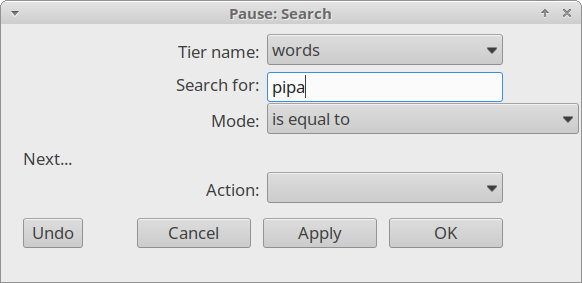
In Fig. 11, the dialog box is configured to search for all labels that match the word “pipa” within the “words” tier.

  1. Open Search window: Go to Finder > Search.

  2. Specify search:
    • Tier name: Select the tier to search (e.g., “words”).

    • Search for: Enter the word (e.g., “papa”).

    • Mode: Choose is equal to for exact matches.

  3. Run search: Click OK.

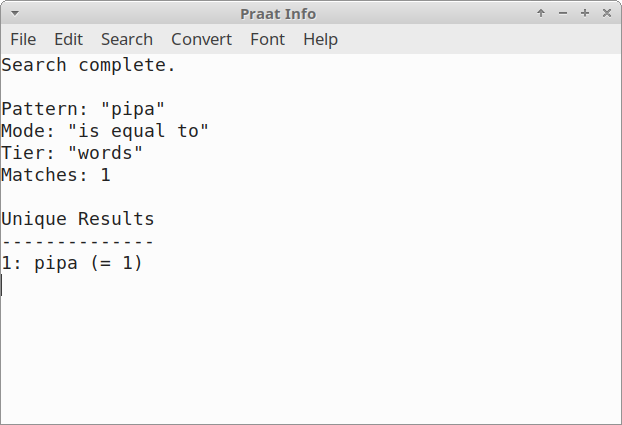
  4. View results: Check the Praat Info window for matches.

  5. View results: .

_images/search-window.png

Fig. 11 The Search window

_images/search-results.png

Fig. 12 Results in the Praat Info after running the Search command

Searching for all items:

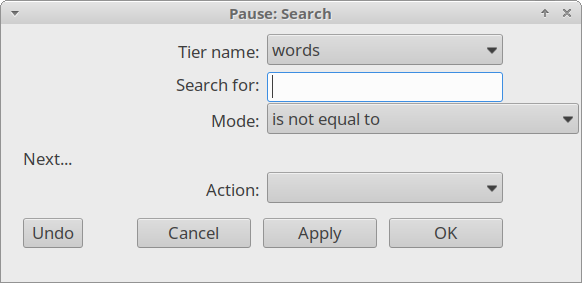
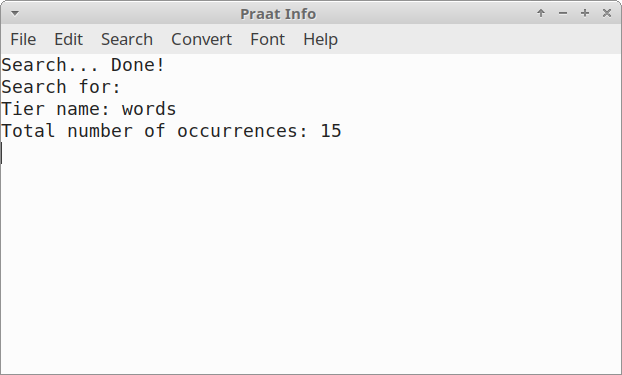
To search for all transcribed items (non-empty items) in a specific tier, follow the same steps as above, but leave the Search for field empty and choose is not equal to in the Mode options.

_images/search-window2.png

Fig. 13 Search window

_images/search-results2.png

Fig. 14 Results in the Praat Info after running the Search command

Using Regular Expressions (advanced):

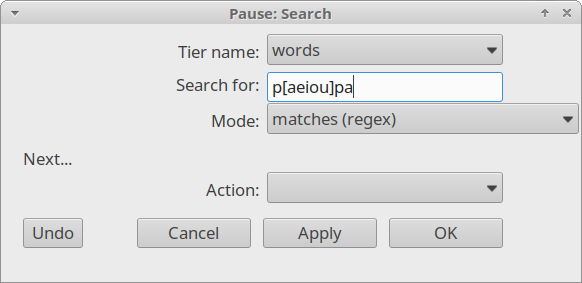
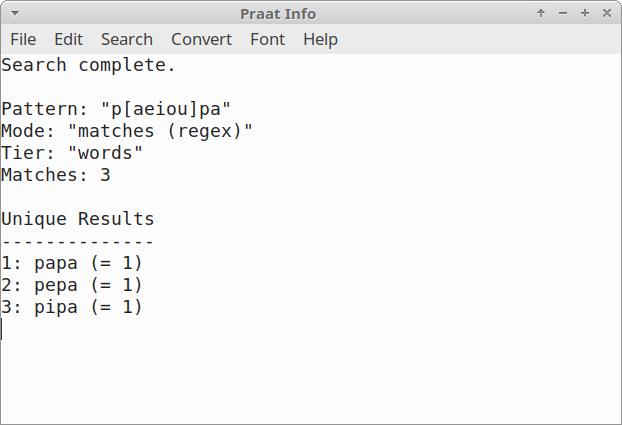
  1. Enable matches (regex) mode in the Search window.

  2. Use patterns like p[ae]pa to match both “papa” and “pepa”.

  3. See the Praat Regular Expressions Tutorial for more details.

_images/search-window3.png

Fig. 15 The Search window

_images/search-results3.png

Fig. 16 Results in the Praat Info after running the Search command

Now you are ready for Step 3: Tasks.

©2021, Rolando Muñoz Aramburú. | Powered by Sphinx 9.1.0 & Alabaster 1.0.0 | Page source